A video file format packs a compressed picture stream, a sound stream and labels into one file. The outer layer is the container, the file type you see as .mp4, .mkv, .mov, .webm or .avi. A video codec such as H.264 shrinks the picture, and an audio codec shrinks the audio stream next to it. Raw 1080p fills about 11.2 GB a minute, so compression is close to universal.
MP4, MKV, MOV, WebM and AVI cover most files, and MP4 plays in every major browser. Quality comes from codec and bitrate, the extension reveals the type, and older formats survive on discs. The sound is only about 4.6% of a typical file. The sister guide covers audio file formats on their own.
What Is a Video File Format?
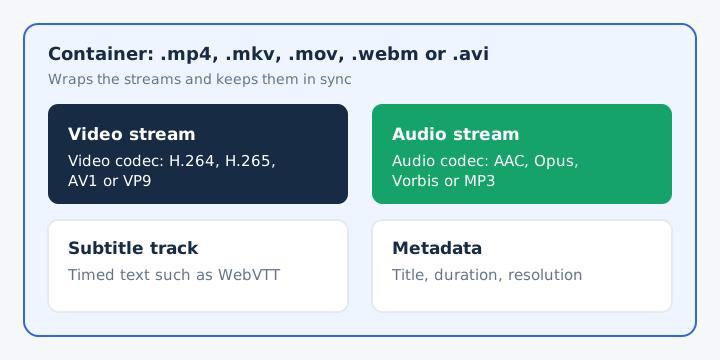
A video file format is a file type that stores digital video, normally as a container holding a compressed video stream, a compressed audio stream and extras such as subtitles and a title. The container keeps those streams in sync so a player reads them back together.
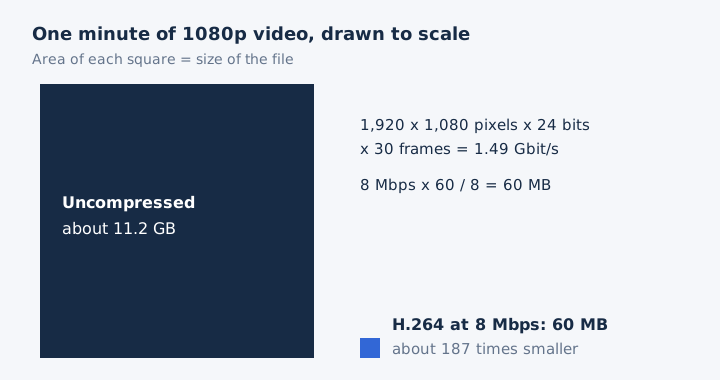
Video almost always uses lossy compression to cut the file size. The scale explains why: uncompressed 1080p at 30 frames per second runs about 11.2 GB for every minute.
The file extension names the container, not the codecs inside it. A .mp4, .mkv or .webm ending tells you the wrapper, while the metadata and the stream headers inside record which codecs did the compressing.
What Is the Difference Between a Container and a Codec?
A container is the file wrapper that holds and syncs the streams, while a codec is the method that compresses one stream and decodes it again for playback. The two jobs split cleanly once you see them side by side.
| Question | Container | Codec |
|---|---|---|
| What it does | Wraps the streams and keeps them in sync | Compresses one stream, then decodes it for playback |
| Examples | MP4, MKV, MOV, WebM and AVI | H.264, H.265, AV1, VP9, AAC and Opus |
| Where you see it | The file extension at the end of the name | The file's properties or the player's info panel |
Encoding happens once, when the codec applies compression to the stream. Decoding happens every time you press play. One container format can hold different codecs, so two .mp4 files can need two different decoders. Browser support for a container does not cover every codec inside it, and that mismatch is the usual reason a file "won't play".
What Is Inside a Video File?
A video file holds a video stream, usually one or more audio streams, and optional subtitle tracks and metadata, all wrapped by the container. Four kinds of data share that one file.
- Video stream: the pictures, compressed by a video codec such as H.264, H.265, AV1 or VP9.
- Audio stream: the sound, compressed separately by its own audio codec such as AAC or Opus.
- Subtitle track: timed text such as WebVTT, which WebM files carry next to picture and sound.
- Metadata: details such as title, duration and resolution, plus the sync data players rely on.
Each container prefers its own audio codecs. MP4 usually carries AAC, the codec designed as the successor to MP3. WebM allows only Opus or Vorbis, and Matroska accepts almost any codec. Opus scales from 6 kbit/s speech to 510 kbit/s stereo music. Because the audio stream sits apart from the picture, a converter can take it out on its own.
Which Video Codecs Do Video Files Use?
Most video files use H.264 (AVC), its successor H.265 (HEVC), or the open codecs AV1 and VP9. Each one arrived with a different publisher and licence behind it.
| Codec | Published by | Year or licence | Usual containers |
|---|---|---|---|
| H.264 (AVC) | ITU-T | First edition 2003 | MP4 and MOV |
| H.265 (HEVC) | ITU-T | First edition 2013 | MP4 and MOV |
| VP9 | WebM Project | Free to use | WebM and MP4 |
| AV1 | Alliance for Open Media | Open codec | MP4 and WebM |
The ITU-T publishes H.264 as "Advanced video coding" and H.265 as "High efficiency video coding". The Alliance for Open Media designed AV1 to compress video more efficiently than earlier codecs, with 4K and 8K in mind. The WebM Project lets anyone use VP8 and VP9 at no charge.
A player needs the codec as well as the container. Audio codecs such as AAC and Opus belong to the audio file formats guide.
What Are the Most Common Types of Video File Formats?
The five video file formats you meet most are MP4, MKV, MOV, WebM and AVI. Each one pairs its own video and audio codecs, and that pairing decides where the file plays.
| Format | Made by | Video codecs | Audio codecs | Best for |
|---|---|---|---|---|
| MP4 | ISO and MPEG | H.264, H.265, AV1 | AAC, MP3, Opus | Sharing and the web |
| MKV | Matroska, open format | Almost any | Almost any | Archives with many tracks |
| MOV | Apple, QuickTime | H.264 and others | AAC and others | Apple's QuickTime tools |
| WebM | WebM Project, 2010 | VP8, VP9, AV1 | Opus, Vorbis | Open web video |
| AVI | Microsoft, 1992 | Varies by FOURCC code | Varies | Older Windows video |
MP4 wraps H.264 or H.265 video with AAC sound and plays in every major browser. MKV, the Matroska format, names the codec of each track and became an IETF Standards Track specification, RFC 9559, in 2024.
MOV comes from Apple's QuickTime, and its file layout became the basis of MP4. WebM narrows Matroska to open codecs for the web. AVI, Microsoft's RIFF container, dates from 1992 and still opens in desktop players. The MOV guide and the WebM and AVI guides each cover one format in depth.
Two errors repeat across the web. WebM dates from 2010, not later. MKV is not limited to one codec, because every Matroska track declares its own.
Which Video File Format Is the Most Compatible?
MP4 is the most compatible video file format, because every major browser accepts it. WebM shares that browser support, while MKV, MOV and AVI depend on the player you install. Browser support splits the five formats into two groups.
| Format | Plays in browsers | Notes |
|---|---|---|
| MP4 | All major browsers | Chrome, Safari, Edge and Firefox all play it |
| WebM | All major browsers | Built for the web with VP8, VP9 or AV1 |
| MKV | Not guaranteed | Chrome may or may not decode a .mkv file |
| MOV | Older Safari only | Needed the old QuickTime plugin elsewhere |
| AVI | No | Opens in a desktop media player instead |
Compatibility stops at the container, though. Codec support decides the rest: an MP4 plays only when the browser also decodes the video codec inside it.
Which Video File Format Has the Best Quality?
No container has the best video quality on its own. The video codec and the bitrate inside the file set the quality, so the same H.264 stream looks identical in MP4, MOV or MKV.
Newer codecs squeeze more picture into each bit. AV1, for example, aims to compress video more efficiently than earlier codecs. Resolution sets how many pixels each frame carries, and the bitrate sets how many bits describe them. At 8 Mbps, YouTube's recommended rate for 1080p, the file is about 187 times smaller than raw video, and lossy compression makes up the difference. The video bitrate guide explains that trade in full.
So the best format is the one that fits your use, which the next section matches to each job.
How Do You Choose the Right Video File Format?
You choose a video file format by where the video goes next: MP4 for sharing, WebM for open web video, MOV inside Apple's QuickTime tools, and MKV for keeping many tracks. Match the format to the job, not to a ranking.
- Sharing on any device: MP4 with H.264 gives the widest compatibility, since every major browser plays it.
- Streaming on web pages: WebM uses open, royalty-free codecs and plays in all major browsers today.
- Editing in QuickTime tools: MOV is Apple's own container, built for the QuickTime media framework.
- Archiving multiple audio tracks: MKV keeps several audio and subtitle tracks, each with its own codec.
- Opening old Windows projects: AVI files still open in desktop players, but convert them before sharing.
File size, quality and playback support pull against each other. At the same codec, a smaller file size means a lower bitrate, and any codec plays only where the player can decode it.
How Do You Find the Format of a Video File?
You find a video's format from its file extension, which Windows and macOS can hide but show with one setting. Two settings reveal the extension on most computers.
- Windows: open File Explorer, then select View, then Show, then File name extensions.
- Mac, one file: select the file, choose File, then Get Info, and open Name & Extension.
- Mac, every file: choose Finder, then Settings, then Advanced, and tick Show all filename extensions.
On a Mac, Command-I opens Get Info as a shortcut. The extension shows the container only; the codecs appear in the player's properties or info panel.
What Are the Old Video File Formats?
The older video formats still found on drives and discs are AVI, MPG, VOB, WMV, FLV, AVCHD and 3GP. These formats outlived the devices that made them.
- AVI: Microsoft's RIFF container from 1992; OpenDML extensions in 1996 lifted its 2 GB cap.
- MPG: MPEG-1 video from 1992 and MPEG-2 video from 1996, both used on DVDs.
- VOB: the files inside a DVD's VIDEO_TS folder, holding MPEG-2 video and the sound.
- WMV: Windows Media Video inside Microsoft's ASF container, paired with Windows Media Audio sound.
- FLV: Flash Video, released in 2003 for Flash Player, and rare since Flash retired.
- AVCHD (.mts, .m2ts): the transport stream format of many Sony and Panasonic HD camcorders.
- 3GP: a small container designed for 3G mobile phones and their cellular networks.
MP4 or AVI comes down to playback: every major browser plays MP4, while AVI needs a desktop player. The AVI guide compares the two in depth.
How Do You Extract Audio From a Video File?
You extract audio from a video file by converting it to an audio format such as MP3 or WAV, which keeps the sound stream and drops the pictures. The output you pick sets the file size, so pick it by what you'll do with the sound.
- MP3 at 128 kbps: mid-range quality, more than the 64 kbps usually recommended for speech.
- MP3 at 320 kbps: the highest bitrate the MP3 standard supports, the right pick for music.
- WAV (16-bit PCM): uncompressed sound with no new loss, the right pick for editing.
Audio extraction on mp4tomp3.io works on MP4, MOV, M4V, WebM and MKV files whose sound is AAC, Opus, Vorbis, MP3 or FLAC. It doesn't read AVI, FLV, WMV, MPG or VOB files yet, or MKV files with AC-3 or DTS sound. DRM-protected files can't be converted.
Is the Audio Track Smaller Than the Video Track?
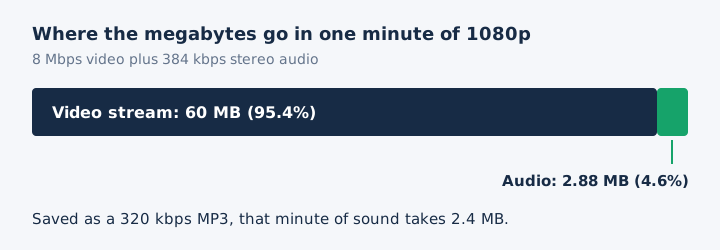
Yes, the audio track is a small slice of a video file: at YouTube's recommended 1080p rates the sound is about 4.6% of the bits. YouTube sets 8 Mbps for the video and 384 kbps for stereo sound, so a minute fills about 62.9 MB and the audio track takes 2.88 MB of it.
Measured in megabytes per minute, the gap stays wide after conversion. A video to MP3 converter turns that minute of sound into a 2.4 MB file at 320 kbps, so the file size drops by about 96%.
Can You Extract Audio From MKV, MOV and WebM Files?
Yes, mp4tomp3.io pulls the sound out of MKV, MOV and WebM files in the browser, as long as the sound is AAC, Opus, Vorbis, MP3 or FLAC. The MKV to MP3 converter converts Matroska files directly.
MOV files have a MOV to MP3 page, and WebM files have a WebM to MP3 page. MKV files with AC-3 or DTS sound aren't supported yet, and neither are AVI files.
Can You Save the Audio From a Video as WAV?
Yes, mp4tomp3.io saves a video's sound as a 16-bit PCM WAV file, which adds no new compression and suits editing. The video to WAV converter converts the file in the browser.
MP3 output means re-encoding the AAC or Opus track, so it loses a little more. WAV runs about 10.6 MB a minute, roughly 4.4 times the 2.4 MB of a 320 kbps MP3.
Can You Extract Audio From a Video Without Uploading It?
Yes, mp4tomp3.io extracts the audio inside your browser, so the video never goes to a server. That privacy covers private recordings, which stay on your own device. The extract audio from video tool takes three steps.
- Add the video file from your phone or computer to the converter page.
- Pick an MP3 bitrate or WAV, and trim the start and end if needed.
- Convert the file, then download the finished audio to your device.